Create a Meta Business Portfolio
Create an Ad Account inside it
Add a payment method
Confirm ownership
How to Set Up Your Meta Business Manager & Ad Account
(For first-time Meta advertisers)
If you’re new to Meta advertising, your business will need two things before ads can run:
A Meta Business Manager (Business Portfolio)
A Meta Ad Account created inside that portfolio
Meta requires these to be created and owned by the business — agencies cannot create or own them on your behalf. The good news: setup is straightforward, and this guide walks you through it step by step.
💡 If you already have a Business Manager or Ad Account, you can skip this guide.
What you’ll need before starting
A personal Facebook profile (used only to log in — not for posting)
A business email address
Your business name
5–10 minutes of time
Step 1: Create your Meta Business Manager
Your Meta Business Manager is the central hub for all your Facebook and Instagram business assets — including pages, ad accounts, pixels, and access permissions.
How to create it
Click Create account
Enter:
Your business name
Your name
Your business email address
Follow the on-screen steps to complete setup
Confirm your email address if prompted

Once complete, your Business Manager is live and ready to add assets.
Step 2: Add (or create) your Facebook Page
If you already have a Facebook Page for your brand, you’ll add it to your Business Manager.
Open Business Settings
Go to Accounts → Pages
Click Add
Choose Add a Page and enter your Page name or URL
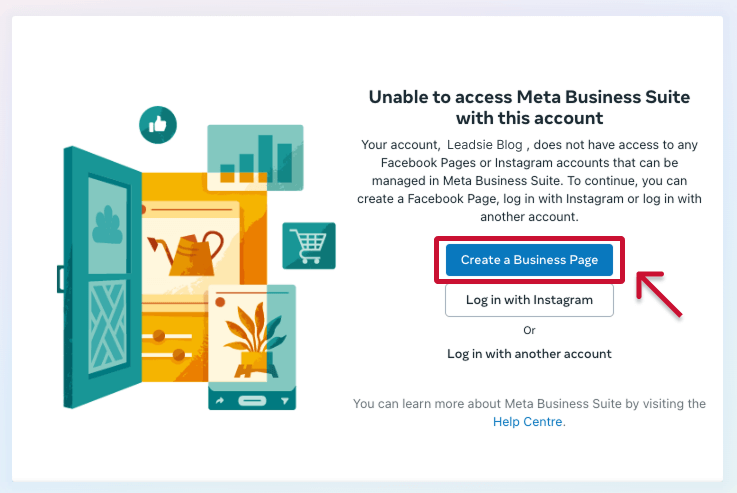
If you don’t have a Page yet, you can create one here instead.
Business Settings → Pages → Add PageStep 3: Connect your Instagram account
Connecting Instagram allows your ads to run across both Facebook and Instagram.
In Business Settings, go to Accounts → Instagram accounts
Click Add
Log in to your Instagram Business account
Approve the connection
Step 4: Create your Meta Ad Account
Your Ad Account is where campaigns live and where ad spend is billed.
How to create it
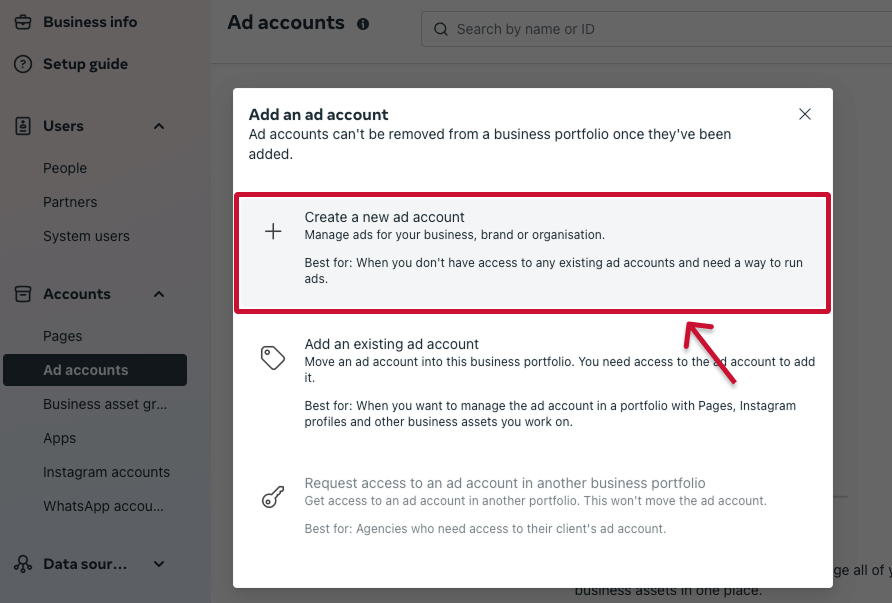
Go to Business Settings → Accounts → Ad accounts
Click Add
Select Create a new ad account
Enter:
Ad account name (example: Your Brand – Main Ad Account)
Time zone
Currency
Click Create ad account
Add a valid payment method when prompted
⚠️ Important: Once an ad account is created, it cannot be deleted — only closed. Please double-check the name, time zone, and currency before confirming.
Step 5: Add additional assets later
You don’t need to do this now — Forge will help guide or audit these during onboarding if needed.
Optional assets include:
Meta Pixel
Product Catalog (for eCommerce)
Conversion events
What happens next?
Once your Business Manager and Ad Account are created:
Complete Forge’s Meta Ads onboarding
You’ll receive a secure access request via Leadsie
Leadsie will guide you through approving access step by step
Forge will review everything and prepare your account for launch
👉 What to expect when approving Meta access via Leadsie
Important notes & best practicesAlways use a business email address when setting up Meta assets
Your business should own the Business Manager and Ad Account
Agencies (like Forge) manage access — ownership stays with you
If you get stuck at any point, our team is happy to help
You’re not behindMany successful brands start Meta ads without having any of this set up. This guide exists to make the process smooth, simple, and stress-free — and we’ll support you every step of the way.